AxleSynck
Tally on cloud with AxleSynck
Your TallyPrime runs on a cloud computer - TallyPrime Cloud Access, AntraCloud, Tally on AWS or any Remote Desktop. The AxleSynck Connector, a small program you open on that cloud computer, links it to AxleSynck on your own PC. No VPN, no ports to open, nothing to install.
AxleSynck Connector
For Windows and for Tally's own cloud · one file, about 7 MB
Download it on the cloud computer, in its web browser - not on your own PC.
Download it on the cloud computer, in its web browser - not on your own PC.
On the cloud computer
- Open TallyPrime there as usual, with your company.
- Open the cloud computer's web browser and come to this page. On TallyPrime Cloud Access the browser is in the menu at the bottom left: Internet › Firefox. The address is connect.axlesynck.in - or paste the link copied from AxleSynck's Settings.
- Download the connector and open it from the browser's download list. If Windows asks whether to run it, choose Run (or More info › Run anyway).
- The connector finds TallyPrime by itself and shows a pairing code. Press Copy.
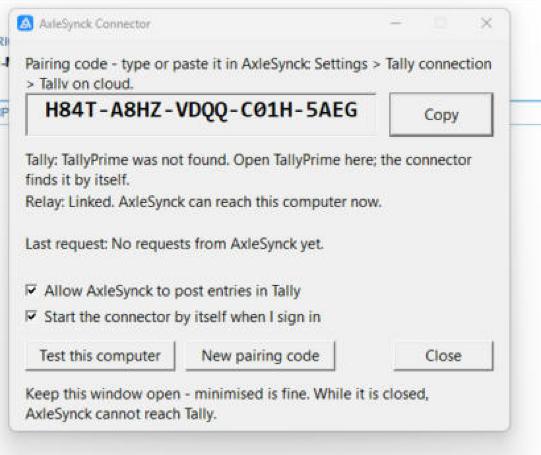
The connector window. Your code is different.
On your own PC, in AxleSynck
- Open Settings › Tally connection and choose On a cloud computer.
- Paste the pairing code (Ctrl+V - Remote Desktop brings across what you copied), or type it. AxleSynck notices a typing mistake straight away.
- Press Test connection: it shows the connector and your open company. Then press Save & reconnect. That is all - every AxleSynck screen now works with your cloud Tally.
Every day
- Keep the connector open on the cloud computer while you use AxleSynck. Minimised is fine.
- Leave Start the connector by itself when I sign in ticked, so it opens on its own. On TallyPrime Cloud Access, if it does not, open it again from the browser's download list.
- Big fetches, such as a whole year of GST, take a little longer than with Tally on your own PC.
If something is not right
- AxleSynck says "The AxleSynck Connector is not running"
- Open the connector on the cloud computer, then try again.
- The connector says "TallyPrime was not found"
- Open TallyPrime on the cloud computer. In TallyPrime, F1 › Settings › Connectivity should have TallyPrime acting as Server or Both (or ODBC switched on), port 9000.
- "Another AxleSynck Connector is using this pairing code"
- The connector is open twice, for example on two cloud computers. Close one, or press New pairing code and enter the new code in AxleSynck.
- "The connector is set to read only"
- Tick Allow AxleSynck to post entries in Tally in the connector. Untick it when AxleSynck should only read reports.
- A push stopped with "The link to Tally on cloud dropped"
- Check in Tally whether those entries arrived before you push them again. AxleSynck never sends the same entries twice on its own.
- Testing this computer
- Test this computer in the connector checks Tally, the internet link and the encryption, and says what is missing.
Is my data safe?
- The connector talks only to the TallyPrime on its own computer and to the AxleSynck relay. It opens no ports.
- Everything between AxleSynck and the connector is encrypted with a key made from your pairing code. The relay passes it on without being able to read it, and keeps nothing.
- Only licensed copies of AxleSynck can use the relay.
Treat the pairing code like a password. If it was shared by mistake, press New pairing code
in the connector and enter the new one in AxleSynck.